AI Image Upscaling
AI-rebuilt lines and detail · Automatic denoising · Anime and photos · Up to 16× upscaling
Questions or suggestions? Scan the QR codes below to reach us.
Images are never uploaded to any server — everything runs in your browser. JPG / PNG / WebP supported.
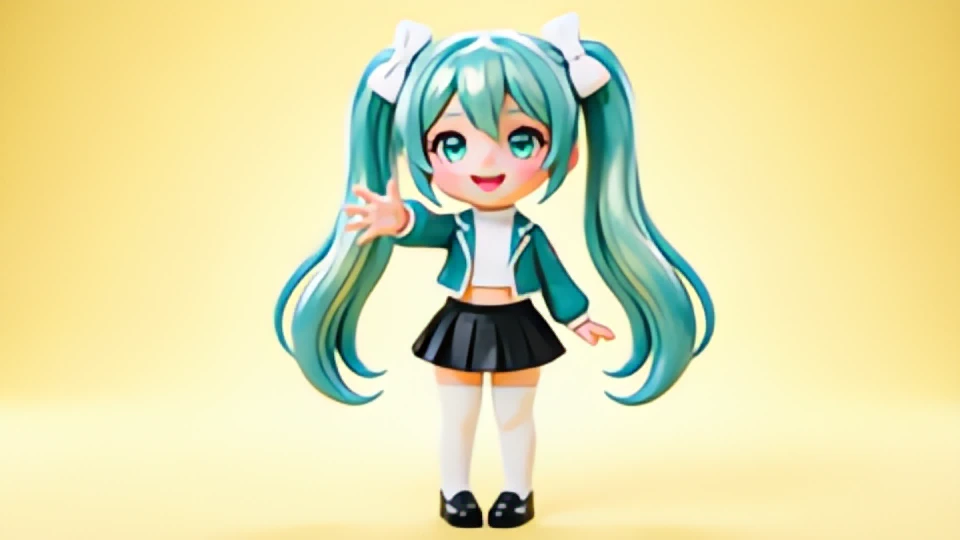

See the difference
It doesn't stretch pixels — it rebuilds lines, colour and detail. Drag the slider to compare.
- Sharper lines and detail
- Smart denoising, cleaner image
- Works for illustrations and photos
- Up to 16× upscaling
Run log
Frequently asked questions
Are my images uploaded to a server?
No. The model and inference engine are downloaded to your device, and upscaling runs entirely in your browser — not a single byte of your image leaves your machine. To verify: open your browser developer tools, switch to the Network panel, process an image, and you will see no upload requests.
What image sizes are supported?
About 3535 px on the long edge on desktop, and about 1200 px on mobile. Larger images are automatically scaled down to a workable size rather than rejected, so you still get a result. The limit comes from memory: the model always outputs 4× dimensions, so bigger inputs make the intermediate buffers grow quickly.
Why does the first run take ten-plus seconds?
The first run downloads the inference engine (about 6–14 MB) and the matching model (2.4–17 MB), then compiles them into an executable graph. The browser caches these files, so from the second image onwards it is much faster. Switching to a different model (for example from anime to photo) downloads that model once.
Should I choose “Cartoon / illustration” or “Photo”?
Pick “Cartoon / illustration” for anime, game art and illustrations; pick “Photo” for photographs, screenshots and landscapes. Choosing wrong makes results noticeably blurrier — the anime model treats real texture as noise and smooths it away. It is the most common mistake; once you pick correctly, we remember your choice.
What is the difference between 16× and 4×?
The model natively outputs 4×, so 4× needs a single inference pass. 8× and 16× run two 4× passes, which raises both time and memory a lot, so the maximum input size is smaller. 1× and 2× also run 4× first and then scale back down — the benefit is cleaner lines and less noise.
Which formats are supported?
Input: JPG, PNG, WebP and other common formats. Output: JPG or PNG — JPG is far smaller and suits photos and screenshots, while PNG is lossless but much larger. If the source has a transparent background we always output PNG, because JPG has no alpha channel and would turn transparent areas black.
Upscaling settings
Choosing wrong makes results visibly blurry: pick “Photo” for photos, screenshots and landscapes; pick “Cartoon / illustration” only for anime, game art and illustrations
The higher the factor, the smaller the image you can process
If the image is already clean choose “None” (sharpest); denoising is only needed for images with noise or compression artefacts
JPG is much smaller — good for photos and screenshots; PNG is lossless but larger
High quality gives sharper lines but is several times slower